작은 크기의 플랫 베드 잉크젯 프린터 제조업체

UV 프린터로 맞춤형 휴대폰 케이스를 인쇄하는 방법 | 에라스마트
맞춤형 휴대폰 케이스를 인쇄하는 것은 디지털 아트워크, 사진, 로고 및 개인화된 디자인을 실제 제품으로 바꾸는 가장 실용적인 방법 중 하나입니다.
UV 프린터를 사용하면 기존의 종이 전사나 직물 열 프레스에 의존하지 않고 호환되는 휴대폰 케이스 표면에 직접 인쇄할 수 있습니다.
고객은 다음 기능이 포함된 전화 케이스를 원할 수 있습니다.
- 가족 또는 애완동물 사진
- 맞춤 이름 및 이니셜
- 원본 일러스트
- 회사 로고
- 여행의 추억
- 꽃무늬와 추상적인 디자인
- 이벤트 브랜딩
- 한정판 작품
UV 인쇄를 통해 일회성 주문 및 반복 디자인을 포함한 단기 맞춤화가 가능합니다.
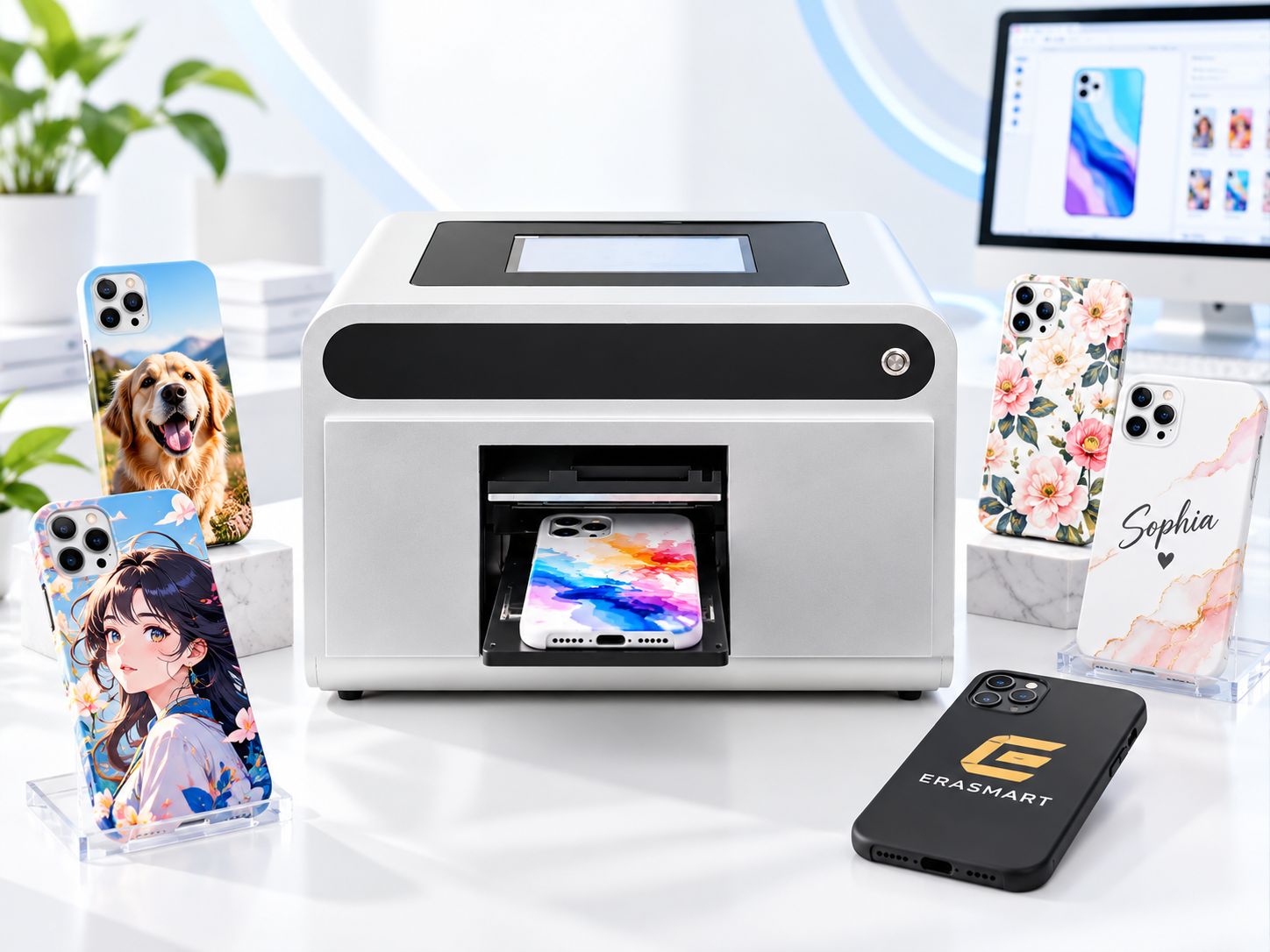
그러나 전문적인 휴대폰 케이스를 제작하려면 프린터 내부에 블랭크를 넣는 것 이상의 작업이 필요합니다.
재료는 적합해야 하고, 삽화는 올바른 휴대폰 모델에 맞아야 하며, 케이스는 안전하게 배치되어야 하며, 완성된 인쇄물은 의도된 용도에 맞게 접착력이 적절해야 합니다.
기본 작업흐름은 다음과 같습니다:
휴대폰 케이스 선택 → 작품 준비 → 표면 청소 → 케이스 배치 → 흰색 및 CMYK 구성 → UV 인쇄 → 검사 → 접착력 테스트
이 가이드에서는 각 단계를 설명하고 EraSmart A5 UV 휴대폰 케이스 프린터 맞춤형 휴대폰 케이스 인쇄 사업을 지원할 수 있습니다.
빠른 답변: 맞춤형 휴대폰 케이스를 어떻게 인쇄합니까?
UV 프린터로 맞춤형 휴대폰 케이스를 인쇄하려면:
- 호환되는 빈 휴대폰 케이스를 선택하세요.
- Prepare the design using the correct phone model template.
- Clean and dry the printable surface.
- Place the case securely in the printing area or positioning jig.
- Import the artwork into the printing software.
- Configure CMYK and white ink where required.
- Confirm positioning and print height.
- Run a nozzle check and print a sample.
- Allow the UV system to cure the ink during printing.
- Inspect the finished case and test adhesion.
- Save the approved settings for repeat production.
A suitable UV printer can print directly onto compatible rigid and some prepared flexible phone cases.
하지만 not every phone case material or coating will provide the same adhesion.
Always test the actual blank before offering it for sale.
What Equipment Do You Need to Print Phone Cases?
A phone case printing setup requires the printer, compatible consumables and a reliable positioning process.
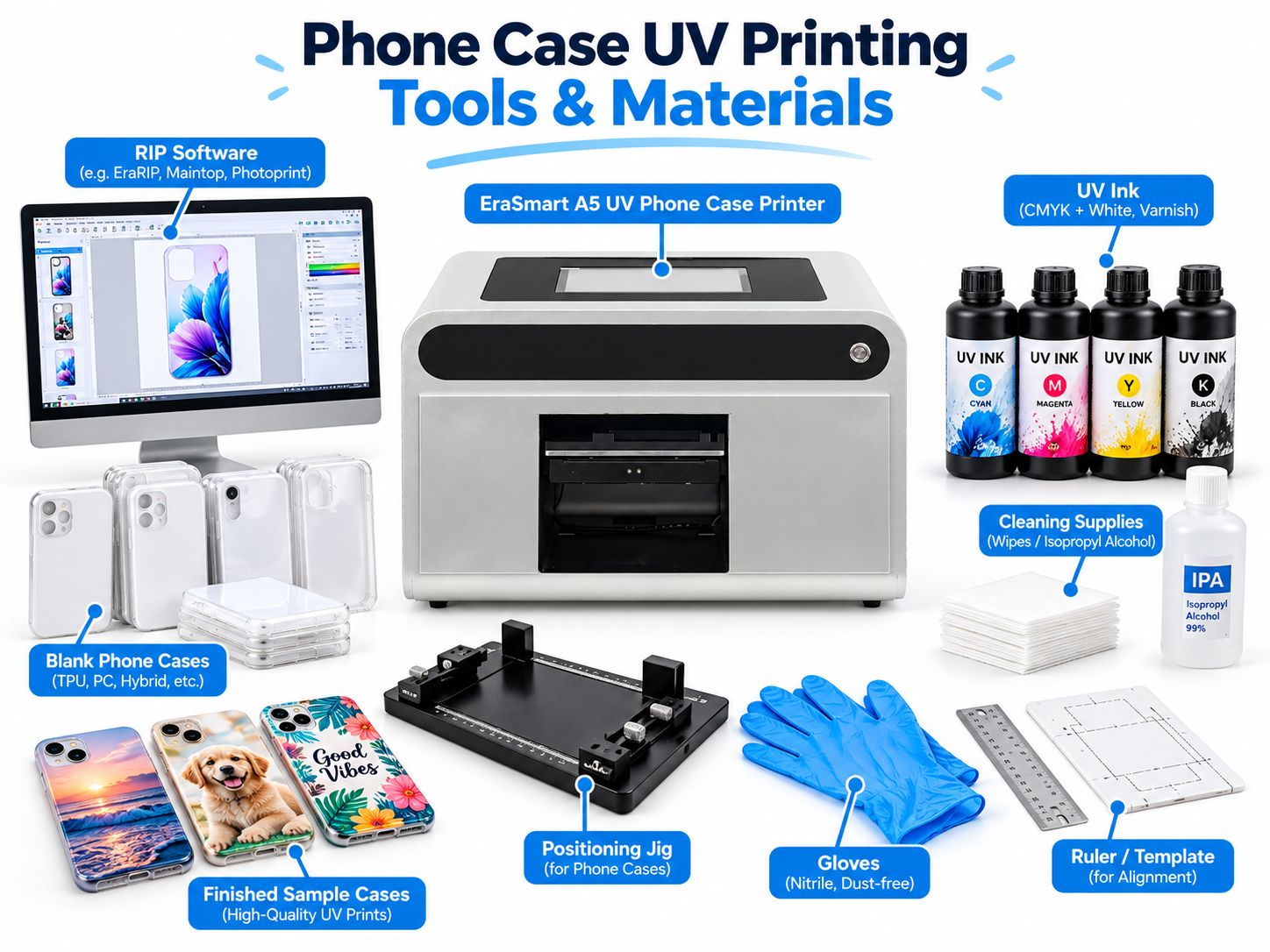
| 장비 | 목적 |
|---|---|
| UV 프린터 | Prints directly onto compatible phone cases |
| UV 잉크 | Creates the printed artwork |
| 백색 UV 잉크 | Provides opacity on dark or transparent cases |
| Printing Software / RIP | Controls design position, color and ink output |
| Blank Phone Cases | Products to customize |
| Positioning Jig | Holds cases in repeatable positions |
| Cleaning Supplies | Removes dust, fingerprints and surface contamination |
| Design Templates | Matches artwork to specific phone models |
| Inspection Tools | Helps check positioning and print quality |
UV Phone Case Printer
The printer is the center of the workflow.
For stores focused primarily on phone cases, a dedicated compact machine can simplify production.
그만큼 EraSmart A5 UV Phone Case Printer with Cloud Design & Printing System is designed for personalized phone case printing and compact custom products.
Its official configuration includes:
- 단일 XP600 프린트헤드
- CMYK + WW 잉크 구성
- A5 printing format
- 최대 1440dpi 해상도
- 0–50 mm supported printing height
- Embedded 10.1-inch Windows computer
- Local file printing
- Optional cloud-connected design and order workflow
- Automatic printhead cleaning
The cloud workflow allows customers to prepare designs online and send approved print tasks to the store-side system.
This can be useful for phone case shops, personalization counters and on-demand businesses.
Compatible UV Ink
Use the UV ink system specified for your machine.
The EraSmart A5 phone case model uses CMYK + WW.
Its standard listed specification does not include a dedicated varnish channel. Varnish effects discussed in general UV printing guides should therefore only be considered on a printer configuration that actually supports them.
Blank Phone Cases
Choose blanks that match the customer’s exact phone model and have an appropriate printable surface.
Positioning Jig
A jig prevents the case from shifting and helps keep designs aligned with:
- Camera openings
- Case edges
- 버튼
- Cutouts
- Artwork margins
Cleaning Supplies
Use lint-free cleaning materials and a cleaner approved for the particular case surface.
Not every plastic or coating tolerates the same solvent.
Which Phone Case Materials Can Be UV Printed?
Choosing the right phone case material is one of the most important steps.
Phone cases may look similar but be manufactured from different polymers, surface coatings and material combinations.
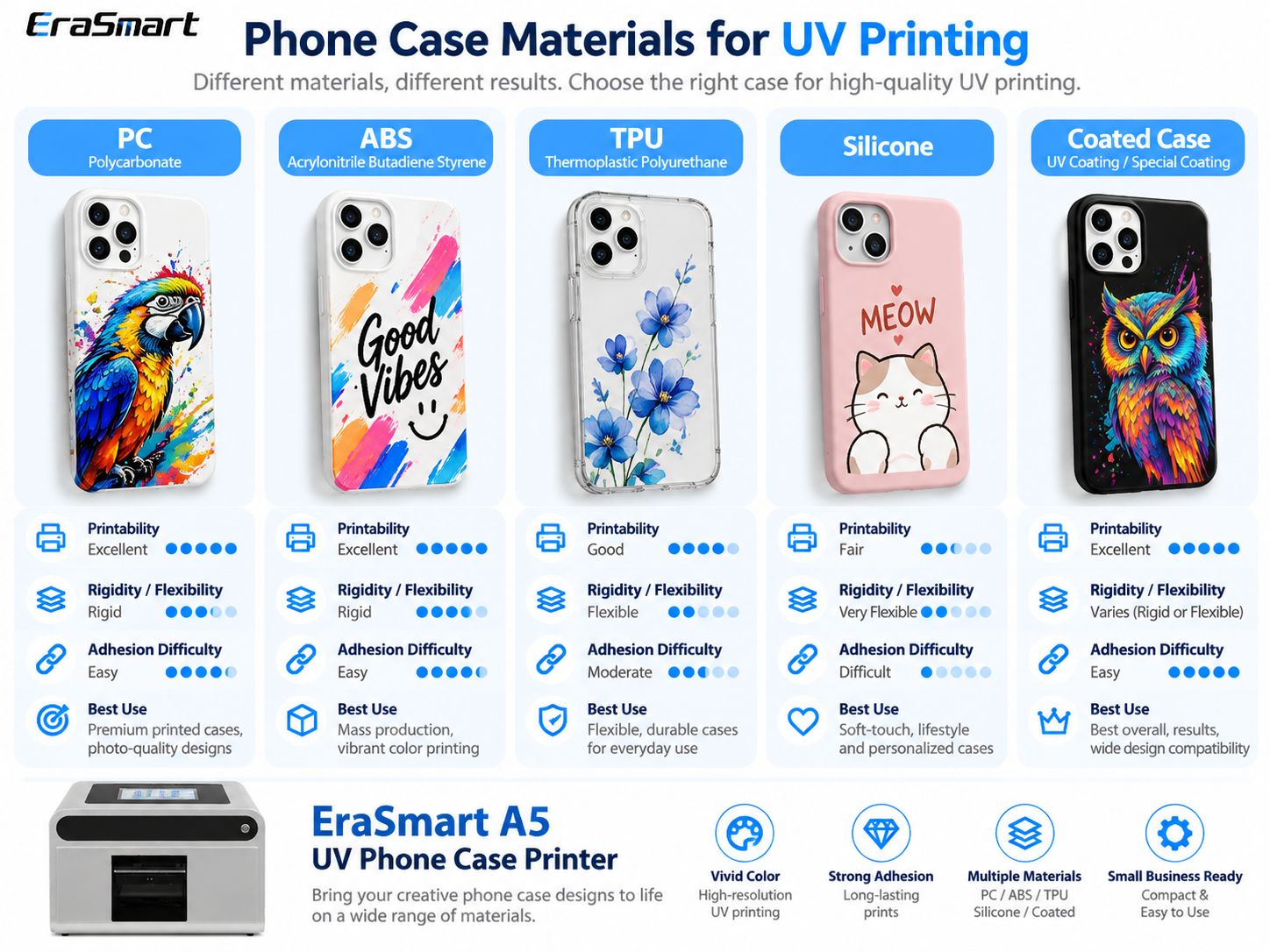
| 재료 | UV Printing Consideration | 주요 리스크 |
|---|---|---|
| Polycarbonate (PC) | Often suitable for evaluation | Coating and surface contamination |
| ABS | Often workable with compatible ink | Mold-release residue and coating |
| TPU | Possible on suitable products | Bending and ink-film cracking |
| 실리콘 | Difficult without a specialized validated process | Low surface energy and high flexibility |
| UV-printable coated case | Often a practical choice | Actual coating compatibility |
| Hybrid PC + TPU | Depends on which area is printed | Different behavior across materials |
Polycarbonate (PC)
Polycarbonate is commonly used for rigid phone cases and protective shells.
It is a practical material to evaluate for UV customization.
Advantages can include:
- Rigid printable backing
- Stable positioning
- Suitable flat surface areas
- Good detail reproduction with a compatible ink system
However, many cases have additional coatings.
Always test the exact product.
ABS
ABS is often used in rigid consumer products and protective housings.
It can be suitable for UV printing when the surface is compatible.
Before printing, check for:
- Manufacturing residue
- 표면 코팅
- 지문
- Mold-release agents
- Incompatible finishes
TPU
TPU is widely used for flexible phone cases.
EraSmart’s A5 UV Phone Case Printer includes suitable TPU among the materials that can be evaluated for printing.
However, TPU introduces an important challenge:
Flexibility.
A print may look excellent while the case lies flat, but repeated bending can stress the cured ink layer.
For TPU cases, test:
- 부착
- Bending
- 굴곡
- 가장자리 리프팅
- Normal handling
성공적인 초기 인쇄가 반복적인 늘어남에 대한 장기적인 저항을 보장한다고 가정하지 마십시오.
실리콘
실리콘 휴대폰 케이스는 기존 UV 인쇄에 특히 까다로울 수 있습니다.
낮은 표면 에너지와 유연성으로 인해 안정적인 접착이 어려울 수 있습니다.
일반 실리콘 케이스를 표준 UV 잉크와 자동으로 호환되는 것으로 취급하지 마십시오.
해당되는 경우 특별히 검증된 잉크, 코팅 또는 표면 처리 시스템을 사용하고 생산 전에 테스트하십시오.
코팅된 휴대폰 케이스
특수 목적으로 제작된 UV 인쇄 가능 케이스는 생산을 단순화할 수 있습니다.
인쇄 가능한 코팅은 보다 일관된 표면을 제공할 수 있지만 해당 호환성은 여전히 잉크 시스템에서 확인되어야 합니다.
다양한 폴리머와 접착력에 대한 더 자세한 설명을 보려면 다음을 읽어보세요. 플라스틱 가이드에 UV 인쇄.
1단계: 적합한 빈 휴대폰 케이스 선택
Before preparing artwork, identify the exact phone model.
Different models may have different:
- Case dimensions
- Camera opening positions
- Button arrangements
- Back-panel shapes
- Raised camera protection
- Surface curvature
A design prepared for one phone model may not align correctly with another.
Check the Printable Area
Do not assume the entire back of the case is printable.
다음을 찾으세요:
- Raised camera rims
- Curved edges
- Decorative ridges
- Recessed sections
- Uneven coatings
For straightforward flatbed production, prioritize cases with a sufficiently flat, accessible back panel.
Confirm Material Compatibility
Start with a small quantity of approved blanks.
Do not buy a large batch solely because the supplier describes a case as “plastic” or “UV compatible.”
Step 2: Prepare the Phone Case Artwork
Artwork preparation directly affects print quality and positioning.
Use the Correct Template
The artwork template should match the exact phone model.
It should include:
- Case outline
- Camera opening
- Printable area
- Safe margins
- Alignment references
Do not position important graphics too close to cutouts or curved edges.
Prepare Artwork at Final Size
For close-view raster artwork, approximately 300 DPI at the final printed size is a practical starting point.
For logos, text and line graphics, vector artwork is preferable.
Avoid enlarging low-resolution images beyond their useful dimensions.
Keep Important Details Inside Safe Margins
Names, faces, logos and QR codes should not cross:
- Camera openings
- Case edges
- Raised surfaces
- Areas that cannot be reached reliably by the printer
Prepare the White Layer
If printing on a black or transparent case, determine whether the artwork requires a white underbase.
A white image in the design file does not automatically mean the printer will output physical white ink.
The white channel must be configured appropriately.
For a complete explanation, see our White Ink Printing Guide.
Step 3: Clean and Prepare the Phone Case
UV ink adhesion depends partly on the actual condition of the surface.
인쇄하기 전:
- Inspect the case for damage.
- Remove visible dust.
- Remove fingerprints and oil with a compatible cleaner.
- Allow the surface to dry completely.
- Avoid touching the printable area afterward.
Do You Need Primer?
때때로.
입문서 요구 사항은 다음에 따라 달라집니다.
- 케이스 소재
- 표면 코팅
- UV 잉크
- Required adhesion
- Intended use
A compatible printable coating or primer may help when direct printing does not provide adequate adhesion.
But primer is not automatically necessary for every phone case.
올바른 접근 방식은 다음과 같습니다.
Clean → Print Sample → Test Adhesion → Evaluate Primer If Needed → Retest
Do not use an arbitrary solvent or surface treatment on an unfamiliar plastic case.
Some cleaning chemicals can damage the coating or cause plastic surfaces to haze or crack.
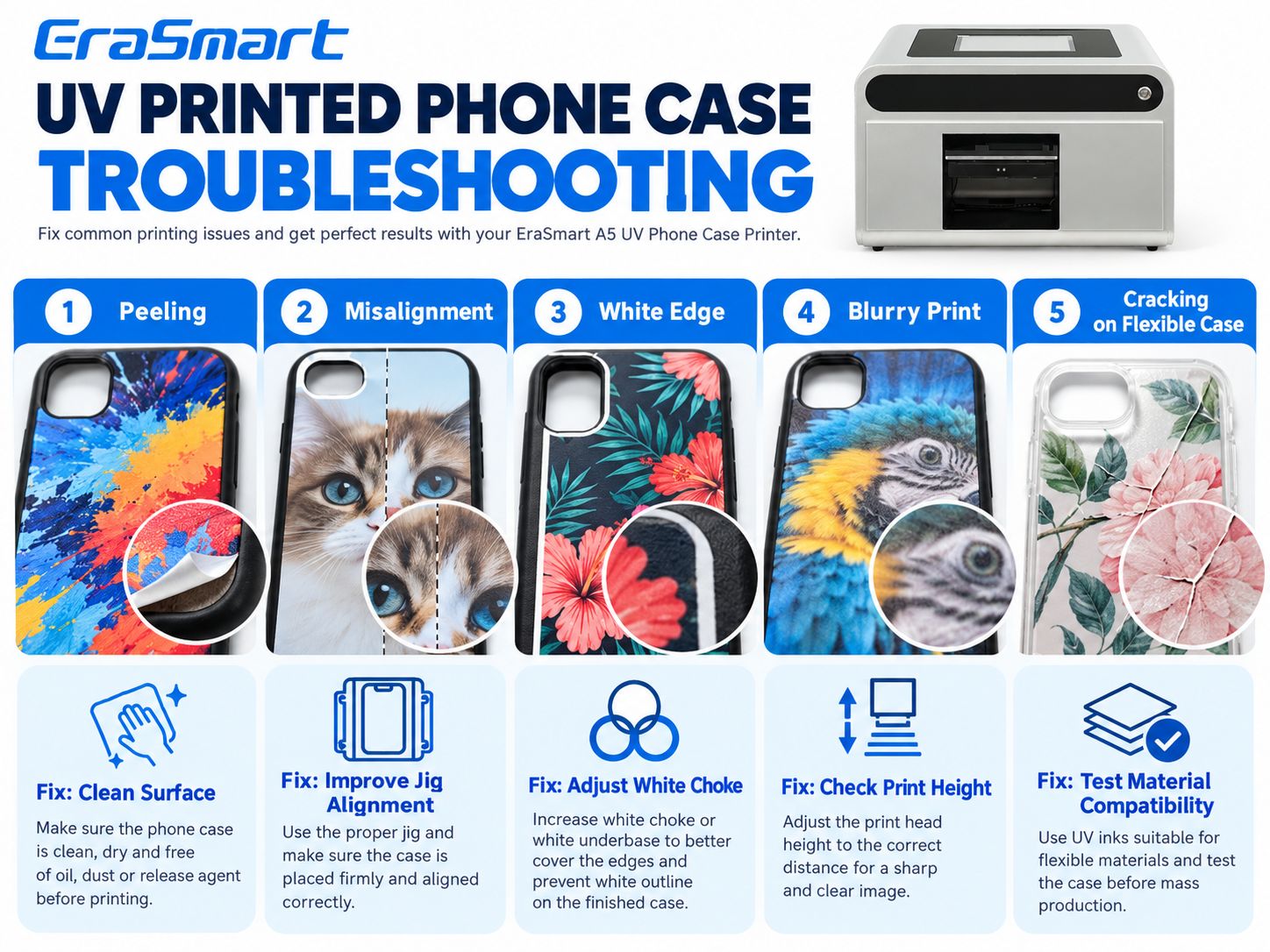
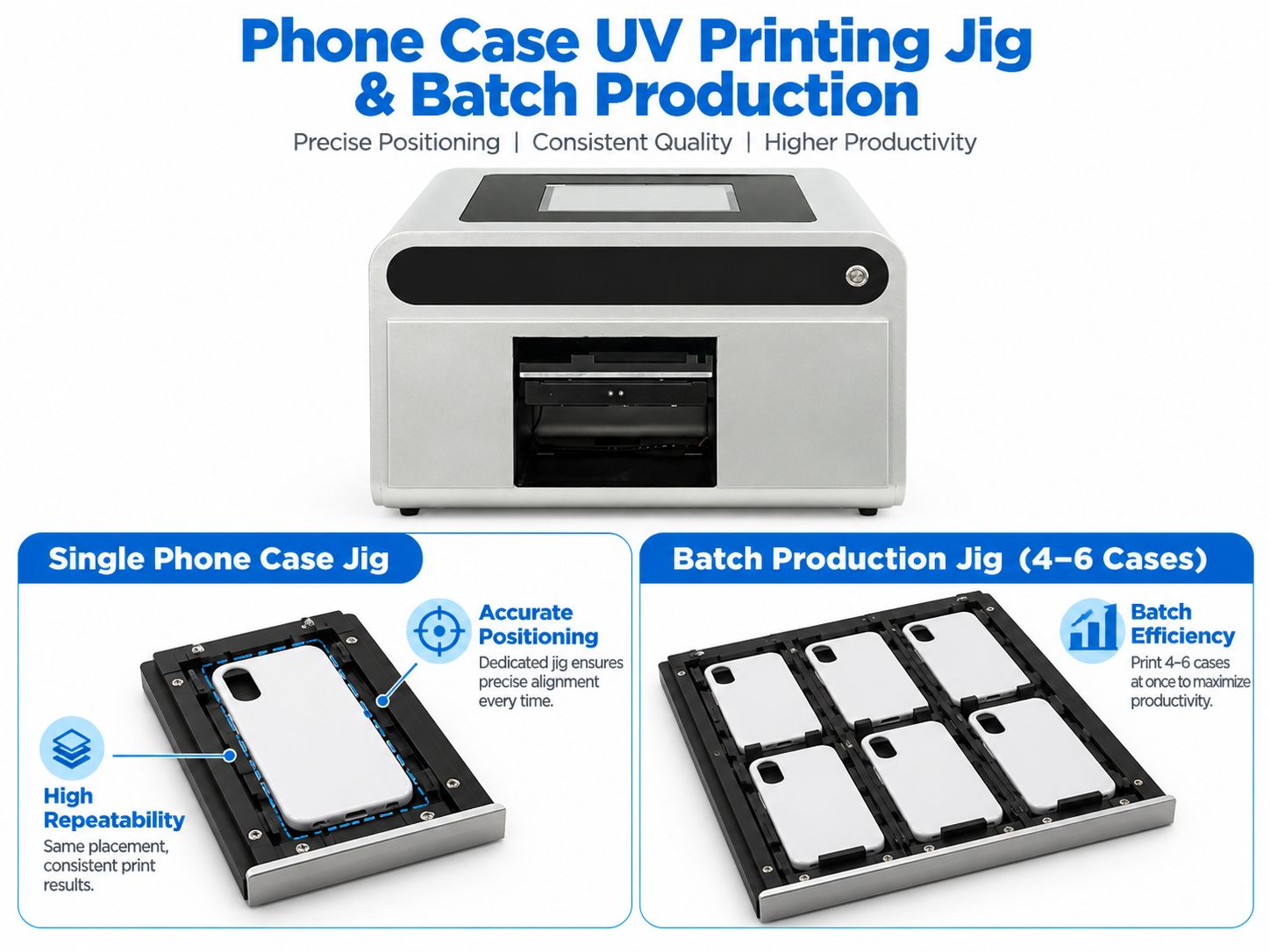
Step 4: Use a Phone Case Printing Jig
Positioning is essential for accurate and repeatable production.
A jig is a fixture that holds the phone case in a known position.
It may use:
- Edge stops
- Adjustable guides
- Model-specific cutouts
- Clamps
- Positioning references
Why Use a Jig?
Without a jig, small positioning differences can cause:
- Misaligned designs
- Images too close to camera openings
- 잘못된 배치
- Inconsistent repeat orders
- Wasted cases
With a suitable jig, the operator can place the case in a more repeatable position.
Single-Case Printing
이는 특히 다음과 같은 경우에 유용합니다.
- Walk-in customers
- 맞춤 선물
- Single-piece orders
- Small retail stores
- Design samples
Multi-Case Printing
A larger compatible UV flatbed and an appropriately designed jig may allow several cases to be positioned in one production layout.
However, the number of cases depends on:
- Actual print area
- Case dimensions
- Spacing
- Fixture design
- Printer clearance
The multi-case jig illustration is a workflow example, not a verified 4–6-case-per-cycle specification for the EraSmart A5 printer.
For an A5 phone case printer, follow the machine’s actual working area and approved fixture configuration.
Step 5: Configure CMYK and White Ink
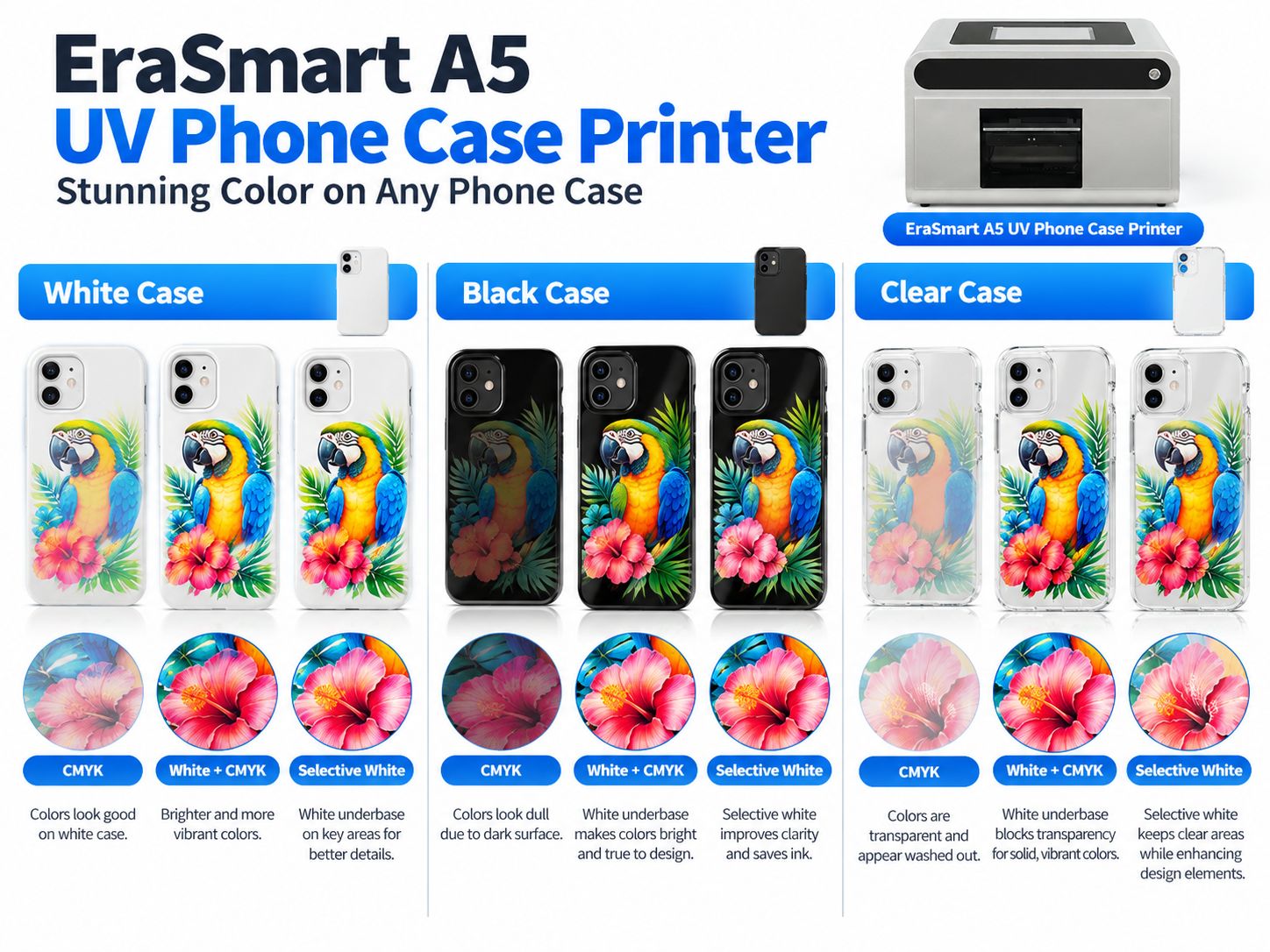
White ink is particularly important when printing on black, dark or transparent phone cases.
White Phone Cases
A white case already provides a neutral background.
For many designs:
White Case → CMYK
may be sufficient.
A full white underbase is not automatically necessary.
Black Phone Cases
Black cases can make transparent process colors appear dull or nearly invisible.
A typical solution is:
Black Case → White Underbase → CMYK
The white layer helps provide:
- Stronger opacity
- Brighter colors
- Better contrast
- More predictable logo appearance
Transparent Phone Cases
Transparent cases offer more creative options.
You can use:
CMYK만
for a translucent appearance.
흰색 + CMYK
for stronger opacity.
선택적 흰색 + CMYK
to keep some areas transparent while making the main artwork more visible.
Do Not Use More White Ink Than Necessary
Excessive white coverage is not automatically better.
It may increase ink usage, production time and layer thickness.
Use settings that have been tested for the specific case material and artwork.
Step 6: Position the Artwork and Set Printing Height
After preparing the phone case and artwork, configure the job in the printer software.
Confirm Orientation
Check that:
- The design faces the correct direction.
- The camera cutout matches the template.
- Text is not accidentally mirrored.
- The printed area fits the physical case.
Set the Correct Print Height
Printhead clearance must match the actual product height and machine configuration.
A phone case may have:
- Raised edges
- Camera protection
- Decorative surface features
- Different thicknesses
Incorrect clearance can cause:
- Blurry printing
- Poor dot placement
- Registration errors
- 프린트헤드 충돌
Never copy one universal head-gap value for every case.
Follow your machine’s operating procedure.
노즐 검사 실행
Before printing a customer product, confirm that the ink channels are functioning properly.
Pay particular attention to white ink when it is required for the design.
Step 7: Print the Phone Case
Once the material, artwork and machine are ready, start with one approved sample.
전체 워크플로는 다음과 같습니다.
Artwork → Surface Preparation → Positioning → RIP Setup → UV Printing → Inspection
인쇄 중
The UV printhead deposits ink onto the phone case.
UV LED light cures the ink during the printing process.
Unlike textile DTF, this workflow does not require:
- 애완 동물 이송 영화
- 핫멜트 접착제 분말
- Textile curing oven
- Garment heat press
Check the First Sample
검사:
- 색상
- Sharpness
- 흰색 불투명도
- Design alignment
- Camera opening clearance
- 가장자리
- 표면상태
The print should also be checked for adhesion before being approved for customer production.
A visually attractive print is not automatically a durable print.
Step 8: Inspect the Finished Phone Case
Quality control is important because a phone case is handled frequently.
Check Printing Position
Confirm that the graphic is centered or otherwise correctly aligned.
Check the Camera Opening
The artwork should not overlap functional camera or sensor openings.
Check Color
Compare the final print with the approved sample.
For professional color management, read 올바른 색상을 인쇄하는 방법.
Check White Ink Registration
Watch for visible white outlines extending beyond the CMYK artwork.
접착력 확인
Perform suitable internal adhesion tests according to the case material and intended use.
Check Flexibility
For TPU and other flexible products, test representative bending and handling.
Check Surface Damage
Make sure the case itself has not been warped, damaged or affected by cleaning or curing conditions.
Step 9: Test Adhesion Before Selling
Phone cases are frequently:
- Picked up
- Put into pockets
- Rubbed against surfaces
- Removed from phones
- Handled with oily or damp fingers
For this reason, adhesion testing should be part of product approval.
Depending on the intended use, consider:
- Basic rub check
- Tape-based comparison testing
- Scratch and abrasion evaluation
- Flex testing for flexible cases
- Cleaning resistance testing
If a customer specifies a formal testing standard, follow the full standard rather than treating a simple workshop test as certification.
Do not promise universal scratch resistance, chemical resistance or permanent durability based only on one successful sample.
How to Print Multiple Phone Cases More Efficiently
Once a design and material combination has been validated, focus on repeatability.
Standardize the Case Blanks
Try to use a consistent supplier and documented case material.
Save Phone Model Templates
Organize templates by:
- 상표
- 모델
- Camera cutout
- Printable dimensions
Save Approved Print Settings
Keep records for:
- 기판
- Artwork size
- White ink mode
- 포지셔닝
- 인쇄 설정
- Adhesion testing
Use Repeatable Fixtures
For larger compatible UV flatbed workflows, multi-position fixtures can reduce manual positioning time.
The actual number of cases printed per cycle must be calculated from the machine’s usable area and case dimensions.
Separate Design Approval from Production
Do not begin printing until the customer has approved:
- Name spelling
- Photo crop
- 그림 물감
- Layout
- Phone model
This helps reduce avoidable reprints.
Local Printing vs Cloud Design-to-Print
One interesting feature of the EraSmart A5 UV Phone Case Printer is its cloud-connected design workflow.
For small stores, handling customer artwork can take nearly as much time as the printing itself.
Traditional Local Workflow
A customer:
- Sends an image.
- Confirms the phone model.
- Requests design changes.
- Approves the final artwork.
The operator then imports the approved file and prepares the job.
EraSmart Cloud Workflow
The A5 cloud system can support a different workflow:
- Customer opens the online design interface.
- Customer selects a phone model/template.
- Customer uploads a photo or adds text.
- Customer previews the design.
- Customer submits the approved task.
- Store-side software receives the task.
- Operator prepares the physical case.
- Printer completes the approved job.
This can help reduce repeated file handling and manual order sorting.
The A5 also supports local file workflows through its integrated Windows computer.
See the complete EraSmart A5 UV Phone Case Printer with Cloud Design & Printing System.
UV Printing vs UV DTF vs Sublimation for Phone Cases
Not every phone case printing method uses the same workflow.
| 특징 | 직접 UV 인쇄 | UV DTF | 승화 |
|---|---|---|---|
| 인쇄방식 | Directly on case | Print transfer, then apply | Heat-transfer process |
| 주요 장비 | UV 프린터 | UV DTF 프린터 | Sublimation printer and suitable press |
| 흰색 잉크 | 지원되는 UV 프린터에서 사용 가능 | 흔한 | Not part of conventional dye sublimation |
| Case requirements | Compatible printable surface | Compatible adhesive surface | Sublimation-coated blank |
| 열프레스 | 필요하지 않습니다 | Not normally required | 필수의 |
| 주요 이점 | Direct digital customization | Decorate suitable finished surfaces | Established workflow for coated blanks |
| 주요한계 | Surface geometry and adhesion | Transfer adhesion and durability | Coating and heat compatibility |
Choose Direct UV Printing When
You want to print directly onto suitable phone case blanks.
Choose UV DTF When
You want to apply separately produced graphics onto compatible hard-surface products.
Choose Sublimation When
You already work with suitable sublimation-coated case blanks and a validated heat-transfer process.
For more information, explore the EraSmart UV DTF 프린터 범위.
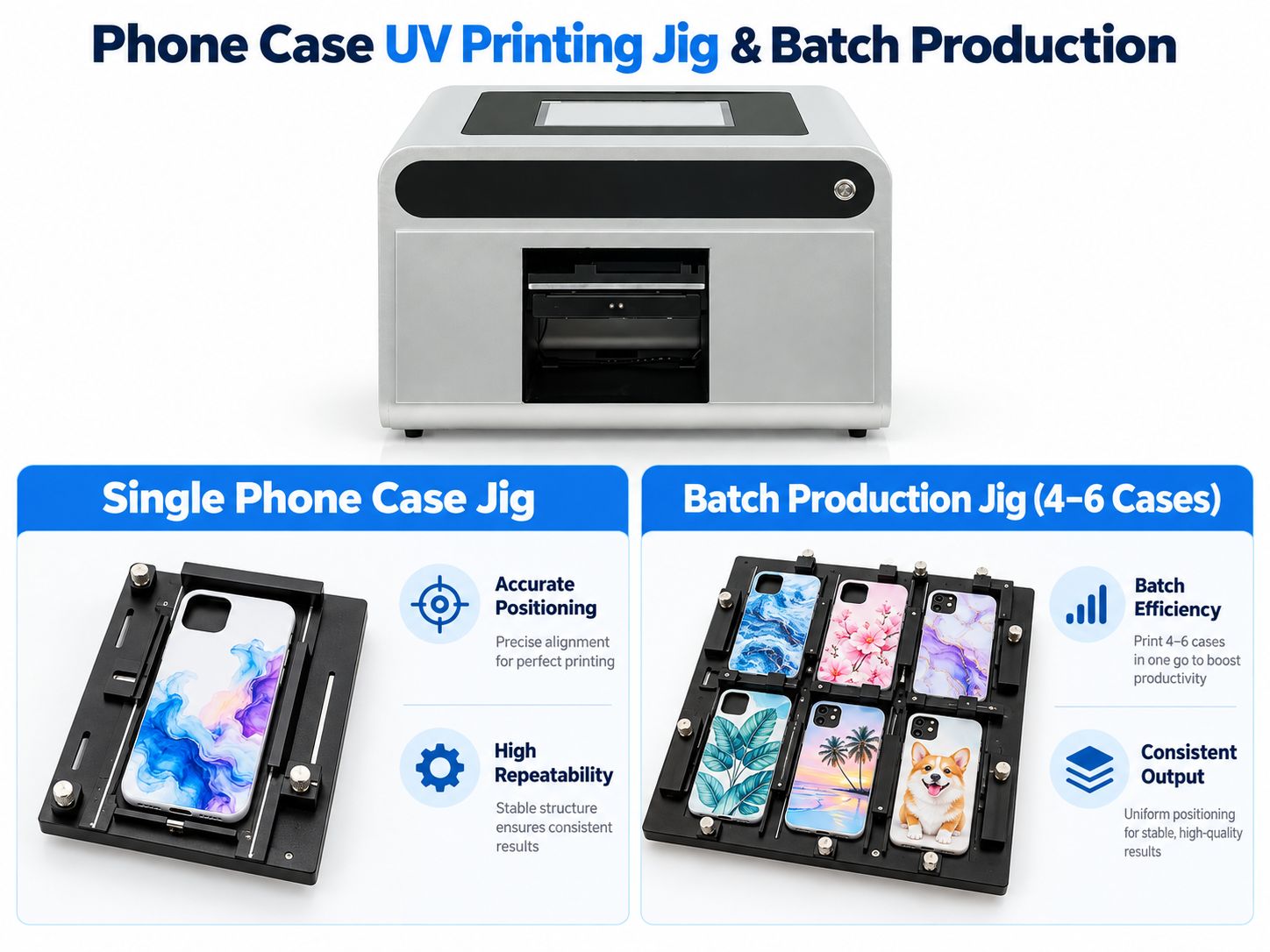
Common UV Phone Case Printing Problems and Fixes
Troubleshooting should begin with the visible symptom.
| 문제 | 가능한 원인 | 확인해야 할 사항 |
|---|---|---|
| 잉크 필링 | Contamination or incompatibility | Material, cleaning, adhesion |
| Misaligned artwork | Incorrect template or case movement | Template and jig |
| Visible white border | White-layer registration issue | RIP white mask and calibration |
| 흐릿한 인쇄 | Clearance or nozzle problem | Print height and nozzle check |
| Cracking on flexible case | Ink film cannot tolerate flexing | Material and flexibility testing |
| 흐릿한 색상 | Weak white underbase or color setup | White opacity and RIP |
| Missing fine detail | Artwork or nozzle issue | Resolution and nozzle condition |
Problem 1: Ink Peels Off the Case
확인하다:
- 표면 오염
- Case coating
- 재료 호환성
- 청소방법
- 전처리
- UV curing settings
Do not assume additional UV exposure alone will fix poor substrate adhesion.
Problem 2: Design Is Misaligned
가능한 원인:
- Wrong phone model template
- Case movement
- Jig alignment
- Incorrect software coordinates
Fix the positioning process before changing the artwork repeatedly.
Problem 3: A White Border Appears Around the Design
This may indicate that the white underbase is larger than the CMYK artwork or that the layers are misregistered.
확인하다:
- White mask size
- RIP choke/spread settings
- Printhead alignment
- Artwork positioning
Use a calibrated test to determine the correct setting.
Problem 4: The Print Looks Blurry
확인하다:
- 프린트헤드 정리
- 노즐상태
- Artwork quality
- Case stability
- 인쇄 모드
Problem 5: The Print Cracks When the Case Bends
This is particularly important for TPU.
가능한 이유:
- Excessive bending
- Ink-film flexibility mismatch
- 접착력 불량
- Incompatible surface or coating
A different printable blank or validated flexible ink system may be necessary.
Problem 6: Colors Look Dull on Black Cases
The white underbase may be missing or insufficient.
Check the white channel and RIP configuration.
For additional troubleshooting, see the UV Printer Troubleshooting Guide.
Which EraSmart UV Printer Should You Choose for Phone Cases?
EraSmart offers different UV printer configurations for different business models.
EraSmart A5 UV 휴대폰 케이스 프린터
가장 적합한 대상: Dedicated phone case personalization, store-based custom orders and compact products.
주요 기능은 다음과 같습니다:
| 사양 | EraSmart A5 UV 휴대폰 케이스 프린터 |
|---|---|
| 프린트 헤드 | 싱글 XP600 |
| Printing Format | A5 |
| 인쇄 높이 | 0-50mm |
| 색상 구성 | CMYK + WW |
| Maximum Resolution | 최대 1440dpi |
| 임베디드 컴퓨터 | 10.1-inch Windows |
| Memory / Storage | 8GB RAM / 256GB |
| 파일 형식 | TIFF, JPG, PNG, PDF |
| Printing Software | 라인강 |
| 연결 | Local / Cloud |
| 자동 청소 | 예 |
| Recommended Operating Temperature | 15~30°C |
| 권장 상대습도 | 40~60% |
Actual output time varies according to artwork, print mode, material and settings.
Explore EraSmart A5 UV Phone Case Printer
Erasmart A4 UV 프린터
가장 적합한 대상: Businesses that want to print phone cases along with other small customized products.
일반적인 응용 분야는 다음과 같습니다.
- 전화 케이스
- Acrylic gifts
- Small signage
- 장식 아이템
- 판촉물
EraSmart A3 UV Printer
가장 적합한 대상: Studios that want a larger work area and greater product flexibility.
잠재적인 응용 분야는 다음과 같습니다.
- 전화 케이스
- 아크릴 패널
- Plastic accessories
- 금속판
- 판촉물
- Small signage
For a buying-focused comparison, see the EraSmart Phone Case Printer Guide.
Can You Start a Phone Case Printing Business from Home?
Potentially, yes—provided you have a suitable workspace, equipment, ventilation, safe UV ink handling and a reliable production process.
A small operation can begin with:
- One printer
- A limited range of tested case blanks
- A collection of original designs
- A small selection of phone models
- A consistent cleaning and printing procedure
- Basic packaging and order management
It is usually easier to establish consistent quality with a smaller range of validated products before expanding into many materials and phone models.
Popular Custom Phone Case Categories
Possible product directions include:
- 애완동물 초상화
- Family photos
- Wedding and couple designs
- Name personalization
- Small-business logos
- 이벤트 상품
- Artist collaborations
- Original illustration collections
Avoid printing copyrighted characters, third-party logos or customer-supplied images without the necessary permissions.
How to Reduce Waste in Custom Phone Case Production
Waste can come from more than failed printing.
일반적인 원인은 다음과 같습니다.
- Incorrect phone model
- Wrong artwork dimensions
- Customer approval mistakes
- Poor surface cleaning
- Incorrect positioning
- 약한 흰색 잉크
- Failed adhesion
- Defective case blanks
A practical waste-reduction strategy is:
- Confirm the phone model before design.
- Approve the customer artwork.
- Use a validated blank supplier.
- Prepare the case using a standard procedure.
- Check the printer before production.
- Print one sample for new materials.
- Record successful settings.
- Inspect finished products before packaging.
This is especially important when producing many small personalized orders rather than one large identical batch.
How Much Does It Cost to Print a Custom Phone Case?
The cost depends on more than UV ink.
A realistic per-case calculation should include:
Blank Case + UV Ink + Labor + Packaging + Maintenance Allocation + Expected Waste + Other Overheads
For a cloud-connected or multi-store workflow, software and service costs may also need to be included.
Do not estimate profitability only from the amount of ink deposited on one case.
The most useful approach is to record real material usage, job times and reprint rates during a small production trial.
Final Answer: How Do You Print Custom Phone Cases Professionally?
Professional custom phone case UV printing is a repeatable production workflow—not simply printing a photograph on plastic.
The most important steps are:
1. Choose the right blank.
The material, coating and surface geometry must be compatible.
2. Prepare the correct design.
Use accurate phone model templates and high-quality artwork.
3. Clean the surface.
Remove contamination before printing.
4. Control positioning.
Use appropriate case fixtures and accurate layout settings.
5. Configure white ink correctly.
White ink is particularly useful for dark and transparent cases.
6. Confirm print height and output.
Protect the printhead and check the nozzle condition.
7. Validate the final result.
Inspect print quality, adhesion and flexibility where applicable.
For small stores focused on personalized phone cases, the EraSmart A5 UV 휴대폰 케이스 프린터 offers a dedicated CMYK + WW workflow with embedded computer operation and optional cloud-based customer design and task management.
For businesses seeking a broader range of custom products, explore the complete EraSmart UV 프린터 collection.
FAQ
Can you print directly onto a phone case?
Yes. A compatible UV printer can print directly onto suitable phone case blanks. Surface material and coating compatibility should be tested before commercial production.
What type of printer is used for custom phone cases?
A UV flatbed printer or dedicated UV phone case printer is a common choice for direct customization.
Can you print phone cases at home?
Yes, with an appropriate workspace, safe operating procedures, compatible blanks and a suitable UV printer.
Can UV printers print on TPU phone cases?
Some suitable TPU cases can be printed, but adhesion and bending performance must be tested.
Can you UV print silicone phone cases?
Conventional UV printing on untreated silicone is challenging. Use a specialized validated process rather than assuming compatibility.
Can UV printers print on clear phone cases?
Yes, depending on the material. White or selective white ink can help control opacity and preserve transparent areas.
Do you need white ink for black phone cases?
Usually, white ink is helpful when you want bright, opaque CMYK artwork on a black surface.
Can you print a photo on a phone case?
Yes. Use a suitable high-resolution image and an accurate phone model template.
Do you need a heat press for UV phone case printing?
No. Direct UV printing uses UV curing rather than textile heat-transfer pressing.
How do you prevent UV ink from peeling off a phone case?
Choose a compatible surface, clean it correctly, use validated pretreatment if necessary, follow suitable curing settings and test adhesion before production.
What is a phone case printing jig?
A jig is a positioning fixture that holds the case in a repeatable location for accurate printing.
Can you print several phone cases at once?
Some UV flatbed workflows can accommodate multi-case jigs. The number depends on the actual printable area, case size and fixture configuration. It should not be assumed for every machine.
Can the EraSmart A5 Phone Case Printer print white ink?
Yes. The EraSmart A5 UV Phone Case Printer has an official CMYK + WW configuration.
Does the EraSmart A5 Phone Case Printer support varnish?
The standard A5 cloud-connected model is listed with CMYK + WW. A separate varnish channel is not included in that published configuration.
Can customers design phone cases online with EraSmart?
Yes. The A5 model supports an optional cloud-connected workflow in which customers can prepare designs online and submit tasks to the store.
Can a UV phone case printer be used for a small business?
Yes. It can support on-demand customization, personalized gifts, retail stores and e-commerce production, provided the complete production process is suitable for the expected order volume.
Start Your Custom Phone Case Printing Business with EraSmart
If you are planning to start or expand a phone case customization business, tell us:
- Your target phone models
- Phone case materials
- Expected daily order volume
- Whether you need local or cloud printing
- Whether you want single-piece customization or broader production
- Your country and business type
- Whether you also want to print other personalized products
We can help you compare the EraSmart A5 UV 휴대폰 케이스 프린터, other Phone Case Printer Solutions 그리고 완전한 EraSmart UV Printer Range.
당신도 좋아할 수도 있습니다
Copyright 2020 © Erasmart. | 사이트 맵